
Turn your old digital keyboard into a USB MIDI keyboard with RPI Pico and TinyUSB.
This is the third of the Raspberry Pi Pico series I bring to you with Rotaract Mora Blog’s Weekly Tech Bytes. If you haven’t read my first two articles where I explain the basics that you will need to follow this tutorial, I highly recommend you to read them first as I will not discuss the basics here. Use the following links to read them
- Setup, Build and Flash Your First Raspberry Pi Pico Program with C++: https://medium.com/@chamodh/setup-build-and-flash-your-first-raspberry-pi-pico-program-with-c-c-730373c01eca
- Getting Started with Raspberry Pi Pico and TinyUSB: https://medium.com/@chamodh/setup-build-and-flash-your-first-raspberry-pi-pico-program-with-c-c-730373c01eca
Before going to the tutorial I like to give a small background story to tell what motivated me to do this project and if you are not interested you can jump straight to the next section of this article.
Background Story
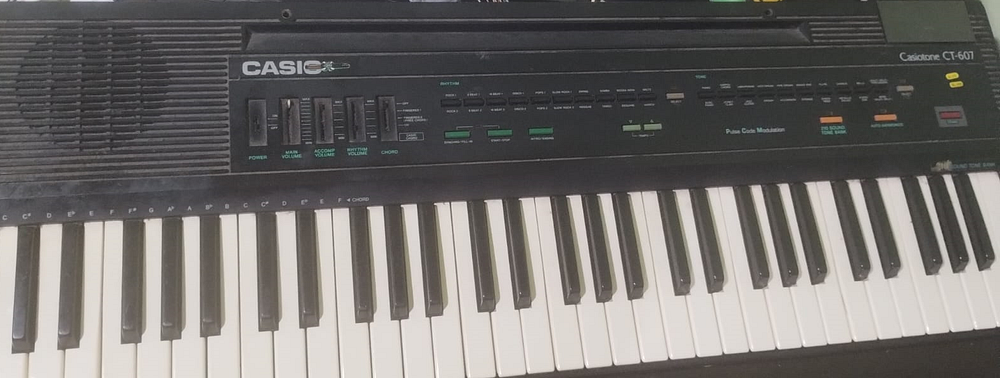
My sister had a Casio CT 607 digital keyboard and it worked well few years ago. But unfortunately it became out of order for unknown reasons and not a single octave sounded correct. Every key made a note but that was not the note it supposed to be. Later, as I had an Arduino board I thought of playing some kind of recorded mp3 samples when a key is pressed using that board and few months later I found a course about FL Studio on FreeCodeCamp’s youtube channel and then I got to know the existence of these MIDI keyboards and their value in the industry of the music production. Since then, I needed to this project and after some little research I found out that I can do this with a Raspberry Pi Pico board and you will understand why I chose this board if you read my second article of this series. Now enough talking and let’s turn your old keyboard into a fully functioning MIDI keyboard.
The Keyboard Matrix
My sister’s keyboard (Casiotone CT 607) is a 61-key keyboard. So the first question I had was how can I get the input if I had only like 20 GPIO pins on my Pico. I was first thinking of using a shift registers but as I got to see the PCB of the keyboard, the keys only gave 17 WIRES to the processor.
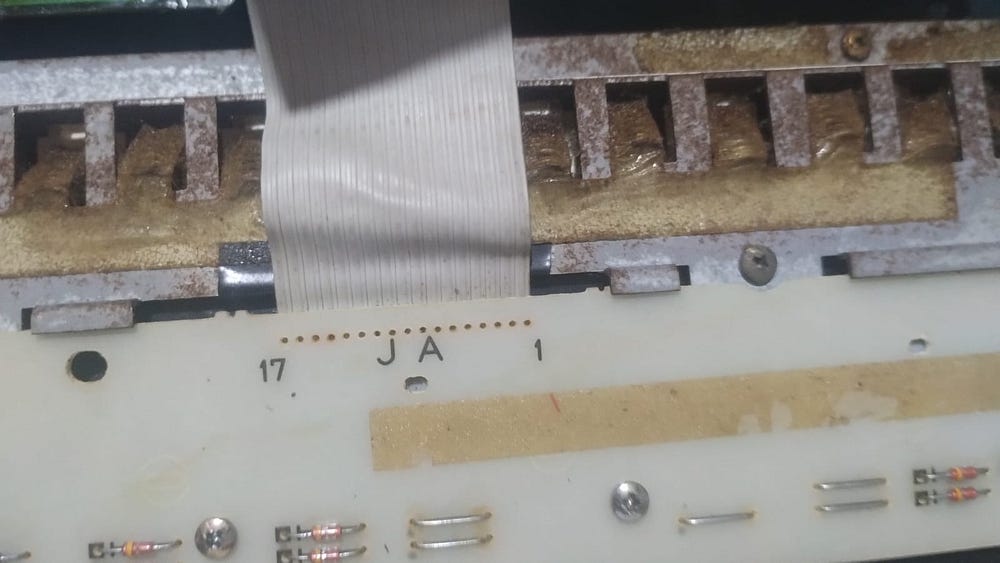
So after some little research I found out that this is done by using a simple yet brilliant technique called the keyboard matrix. I will use the following diagram to explain what really it is.
A keyboard matrix, just like every matrix has rows and columns. Each key has a unique row and column. So the whole keyboard is divided into several rows and columns.
In my keyboards, there are 61 keys in total. The matrix of keys have 11 rows and 6 columns.
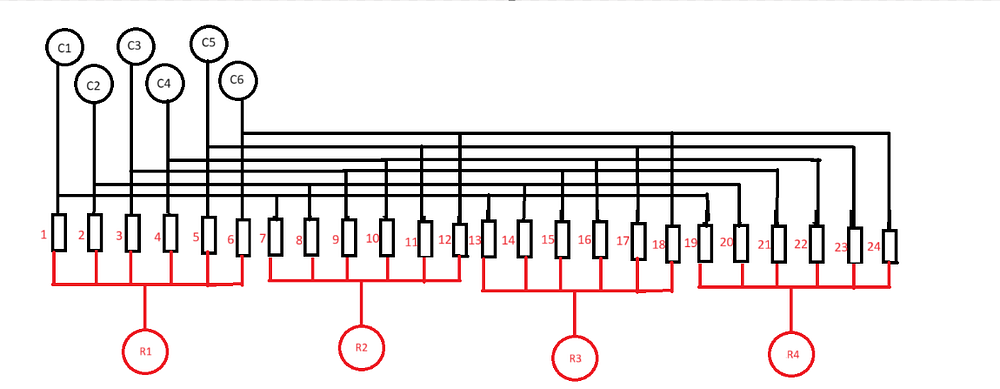
To explain this, I illustrated this simple diagram for you. Here we have 24 keys. C1, C2, C3, C4, C5 and C6 are the columns and R1, R2, R3 and R4 are the rows. So let’s look into how this works.
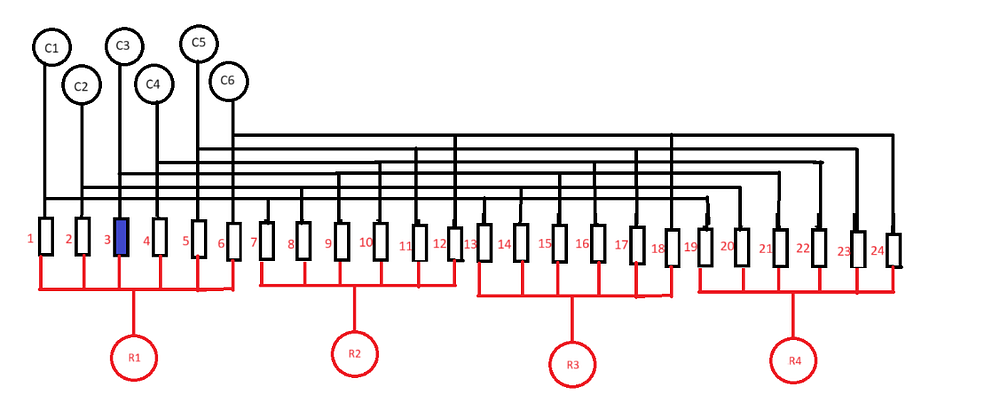
So, let’s say third key is pressed. So all we want is to know whether third key is pressed or not. To do that, we set each row high one by one and check which columns go high. To check which column goes high, we scan all the columns (C1, C2, C3, C4, C5 and C6) one by one for each column. So in this case, the third column (C3) goes high. So we know, third key is pressed (R1,C3)
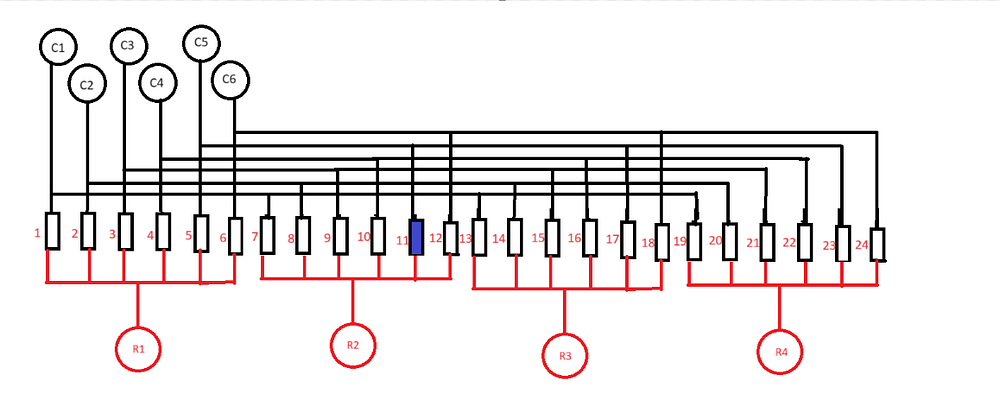
So we know, when the eleventh key is pressed, when we scan the columns for R2 row and C5 column should go high.
These scans happen at a very high frequency so that we cannot perceive the keys are identified one by one. Impressive isn’t it?
However, there is a small problem with this keyboard matrix. Maybe you already have noticed it.
Ghosting
Let’s consider these key presses.
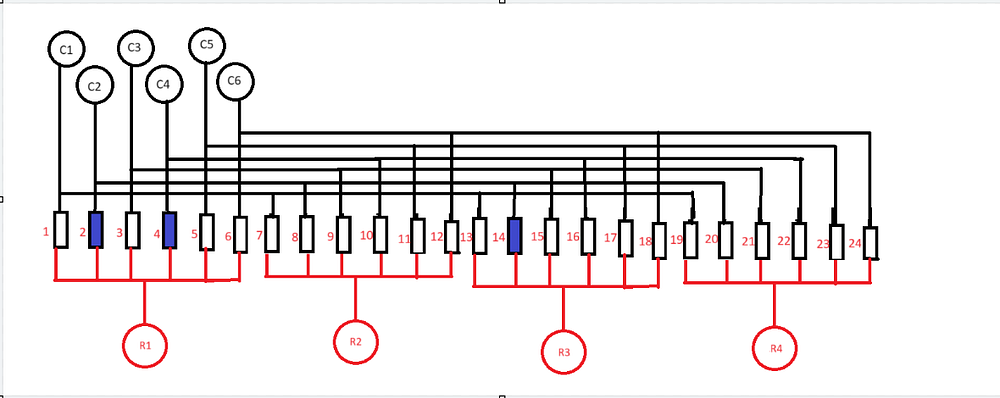
First, we set the R1 high and scan the columns. In this case C2 and C4 is high as both second and fourth keys are pressed. All good. Now when the third row is scanned, the C2 column goes high as 14th key is pressed but as you can see C4 column will also go high because the current flows through the second and fourth key and make C4 high. (R3 -> second key -> fourth key -> C4) This is an incorrect signal and this makes the piano believe the 17th key is pressed, but that key is not pressed. This is called “Ghosting” and we use diodes to avoid this.
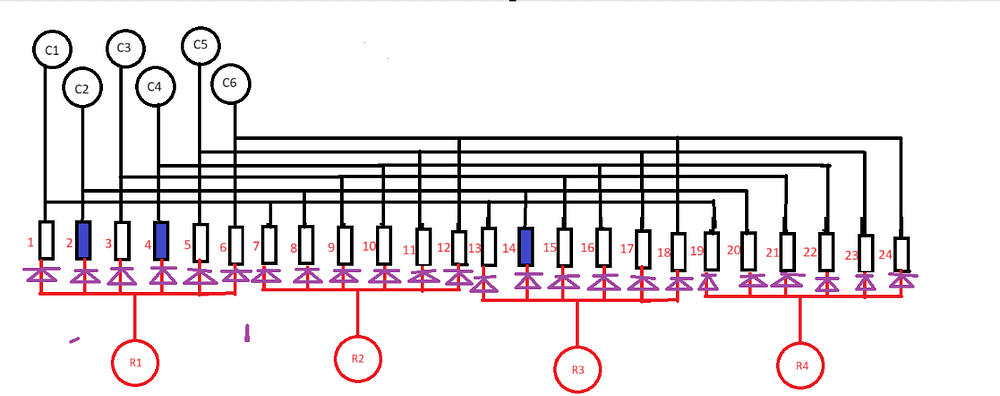
In this diagram we have diodes!! (pardon my drawings). Let’s re-consider the previous scenario. Now with diodes, current can’t flow from C2 to C4 even if both second key are pressed because current can only flow in one direction through a diode. The current cannot go from row side to the column side. The ghosting problem is solved.
Now as you can see we can handle 24 keys using only 10 pins. Let’s say we use the same six columns and want to handle all 61 keys, in my keyboard. We only need 11 rows and 6 columns. So it’s only 17 pins.
The Wiring
Now let’s quickly look into how to connect our keyboard to the Raspberry Pi Pico board. This is pretty easy when you recognize what wires are for the columns and what are the ones for the rows.
You can simply do this is you take sometime to analyze the PCB (Printed Circuit board) of your old keyboard. A wire that makes a set of adjacent keys (in my case, a group of 6 adjacent keys) is a row.
Once, you identified the row and columns note it down somewhere (Eg: 1, 2, 3, 4, 5, 12, 13, 14, 15, 16, 17 are rows and 6, 7, 8, 9 10, 11 are columns) because you need to know them later when you write the code.
Then plug the wires to any GPIO pin of the board and note the wire — to pin connections too. (Eg: first wire to zeroth GPIO pin).
That’s all and we are ready to code.
You may need to learn some soldering when connecting the keyboard’s PCB to the board and if you don’t have much experience in soldering I strongly suggest you to seek support from an experienced one, as it can save both your hands and your time. : )
The Code
The keyboard matrix and how it works, is really the only thing you want to know to do this project. After identifying which wires are for rows and which are for columns you can jump straight to the coding part.
As I have described in my first article of this series, you have to start a new C project using the VS code extension for RPI Pico.
Here is the link of the first article, if you haven’t read it yet: https://medium.com/@chamodh/setup-build-and-flash-your-first-raspberry-pi-pico-program-with-c-c-730373c01eca
Then you should add your usb_descriptors.c file and the tusb_config.h files in your working directory like this.
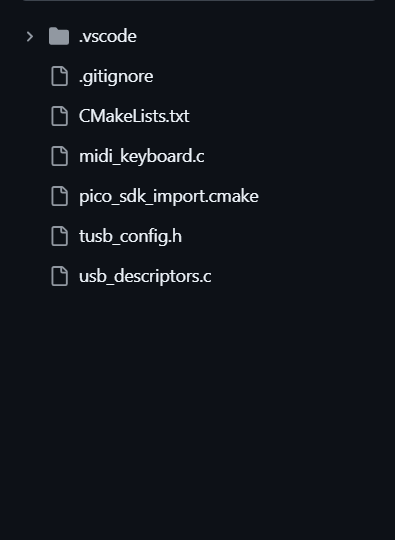
If you need a little refreshment for what we discussed in the second article, the main c file (here midi_keyboard.c) file contains the logic of our keyboard. The pico_sdk_import.cmake file handles integration of the official SDK for RPI Pico with out project. We use the tusb_config.h header file to tell tinyUSB about the nature of our project. We use the usb_descriptors.c file to tell tinyUSB how to interact with the host and what information should be given to the host when our midi device is connected. With this the host (The computer) can identify what we plugged in is a MIDI device.
More information about these files can be found in my second article of this RPI Pico series: https://medium.com/@chamodh/setup-build-and-flash-your-first-raspberry-pi-pico-program-with-c-c-730373c01eca
tusb_config.h
Here is the tusb_config.h file I used for my project
/*
* The MIT License (MIT)
*
* Copyright (c) 2019 Ha Thach (tinyusb.org)
*
* Permission is hereby granted, free of charge, to any person obtaining a copy
* of this software and associated documentation files (the "Software"), to deal
* in the Software without restriction, including without limitation the rights
* to use, copy, modify, merge, publish, distribute, sublicense, and/or sell
* copies of the Software, and to permit persons to whom the Software is
* furnished to do so, subject to the following conditions:
*
* The above copyright notice and this permission notice shall be included in
* all copies or substantial portions of the Software.
*
* THE SOFTWARE IS PROVIDED "AS IS", WITHOUT WARRANTY OF ANY KIND, EXPRESS OR
* IMPLIED, INCLUDING BUT NOT LIMITED TO THE WARRANTIES OF MERCHANTABILITY,
* FITNESS FOR A PARTICULAR PURPOSE AND NONINFRINGEMENT. IN NO EVENT SHALL THE
* AUTHORS OR COPYRIGHT HOLDERS BE LIABLE FOR ANY CLAIM, DAMAGES OR OTHER
* LIABILITY, WHETHER IN AN ACTION OF CONTRACT, TORT OR OTHERWISE, ARISING FROM,
* OUT OF OR IN CONNECTION WITH THE SOFTWARE OR THE USE OR OTHER DEALINGS IN
* THE SOFTWARE.
*
*/
#ifndef TUSB_CONFIG_H_
#define TUSB_CONFIG_H_
#ifdef __cplusplus
extern "C" {
#endif
//--------------------------------------------------------------------+
// Board Specific Configuration
//--------------------------------------------------------------------+
// RHPort number used for device can be defined by board.mk, default to port 0
#ifndef BOARD_TUD_RHPORT
#define BOARD_TUD_RHPORT 0
#endif
// RHPort max operational speed can defined by board.mk
#ifndef BOARD_TUD_MAX_SPEED
#define BOARD_TUD_MAX_SPEED OPT_MODE_DEFAULT_SPEED
#endif
//--------------------------------------------------------------------
// COMMON CONFIGURATION
//--------------------------------------------------------------------
// defined by compiler flags for flexibility
#ifndef CFG_TUSB_MCU
#error CFG_TUSB_MCU must be defined
#endif
#ifndef CFG_TUSB_OS
#define CFG_TUSB_OS OPT_OS_NONE
#endif
#ifndef CFG_TUSB_DEBUG
#define CFG_TUSB_DEBUG 0
#endif
// Enable Device stack
#define CFG_TUD_ENABLED 1
// Default is max speed that hardware controller could support with on-chip PHY
#define CFG_TUD_MAX_SPEED BOARD_TUD_MAX_SPEED
/* USB DMA on some MCUs can only access a specific SRAM region with restriction on alignment.
* Tinyusb use follows macros to declare transferring memory so that they can be put
* into those specific section.
* e.g
* - CFG_TUSB_MEM SECTION : __attribute__ (( section(".usb_ram") ))
* - CFG_TUSB_MEM_ALIGN : __attribute__ ((aligned(4)))
*/
#ifndef CFG_TUSB_MEM_SECTION
#define CFG_TUSB_MEM_SECTION
#endif
#ifndef CFG_TUSB_MEM_ALIGN
#define CFG_TUSB_MEM_ALIGN __attribute__ ((aligned(4)))
#endif
//--------------------------------------------------------------------
// DEVICE CONFIGURATION
//--------------------------------------------------------------------
#ifndef CFG_TUD_ENDPOINT0_SIZE
#define CFG_TUD_ENDPOINT0_SIZE 64
#endif
//------------- CLASS -------------//
#define CFG_TUD_CDC 0
#define CFG_TUD_MSC 0
#define CFG_TUD_HID 0
#define CFG_TUD_MIDI 1
#define CFG_TUD_VENDOR 0
// MIDI FIFO size of TX and RX
#define CFG_TUD_MIDI_RX_BUFSIZE (TUD_OPT_HIGH_SPEED ? 512 : 64)
#define CFG_TUD_MIDI_TX_BUFSIZE (TUD_OPT_HIGH_SPEED ? 512 : 64)
#ifdef __cplusplus
}
#endif
#endif /* TUSB_CONFIG_H_ */
This tusb_config file is provided under MIT license by the creators of the TinyUSB library and we can use freely.
But it’s better to understand what is going in this block of code before proceeding further
//------------- CLASS -------------//
#define CFG_TUD_CDC 0
#define CFG_TUD_MSC 0
#define CFG_TUD_HID 0
#define CFG_TUD_MIDI 1
#define CFG_TUD_VENDOR 0
// MIDI FIFO size of TX and RX
#define CFG_TUD_MIDI_RX_BUFSIZE (TUD_OPT_HIGH_SPEED ? 512 : 64)
#define CFG_TUD_MIDI_TX_BUFSIZE (TUD_OPT_HIGH_SPEED ? 512 : 64)
This tells TinyUSB to include and enable the MIDI device class in the USB device stack and the We define the size of MIDI transmit and receive FIFO buffers to 512 bytes if the device is operation in USB High-Speed mode and 64 bytes otherwise.
usb_descriptors.c
As we discussed in the second article, the usb_descriptors.c helps TinyUSB to tell the computer what type of device you are making and its details. This file is also available under MIT license so I tweaked it a bit so that it can show my name as the manufacturer and a new device name as its name.
/*
* The MIT License (MIT)
*
* Copyright (c) 2019 Ha Thach (tinyusb.org)
*
* Permission is hereby granted, free of charge, to any person obtaining a copy
* of this software and associated documentation files (the "Software"), to deal
* in the Software without restriction, including without limitation the rights
* to use, copy, modify, merge, publish, distribute, sublicense, and/or sell
* copies of the Software, and to permit persons to whom the Software is
* furnished to do so, subject to the following conditions:
*
* The above copyright notice and this permission notice shall be included in
* all copies or substantial portions of the Software.
*
* THE SOFTWARE IS PROVIDED "AS IS", WITHOUT WARRANTY OF ANY KIND, EXPRESS OR
* IMPLIED, INCLUDING BUT NOT LIMITED TO THE WARRANTIES OF MERCHANTABILITY,
* FITNESS FOR A PARTICULAR PURPOSE AND NONINFRINGEMENT. IN NO EVENT SHALL THE
* AUTHORS OR COPYRIGHT HOLDERS BE LIABLE FOR ANY CLAIM, DAMAGES OR OTHER
* LIABILITY, WHETHER IN AN ACTION OF CONTRACT, TORT OR OTHERWISE, ARISING FROM,
* OUT OF OR IN CONNECTION WITH THE SOFTWARE OR THE USE OR OTHER DEALINGS IN
* THE SOFTWARE.
*
*/
#include "bsp/board_api.h"
#include "tusb.h"
/* A combination of interfaces must have a unique product id, since PC will save device driver after the first plug.
* Same VID/PID with different interface e.g MSC (first), then CDC (later) will possibly cause system error on PC.
*
* Auto ProductID layout's Bitmap:
* [MSB] HID | MSC | CDC [LSB]
*/
#define PID_MAP(itf, n) ((CFG_TUD_##itf) ? (1 << (n)) : 0)
#define USB_PID (0x4000 | PID_MAP(CDC, 0) | PID_MAP(MSC, 1) | PID_MAP(HID, 2) | \
PID_MAP(MIDI, 3) | PID_MAP(VENDOR, 4) )
//--------------------------------------------------------------------+
// Device Descriptors
//--------------------------------------------------------------------+
static tusb_desc_device_t const desc_device = {
.bLength = sizeof(tusb_desc_device_t),
.bDescriptorType = TUSB_DESC_DEVICE,
.bcdUSB = 0x0200,
.bDeviceClass = 0x00,
.bDeviceSubClass = 0x00,
.bDeviceProtocol = 0x00,
.bMaxPacketSize0 = CFG_TUD_ENDPOINT0_SIZE,
.idVendor = 0xCafe,
.idProduct = USB_PID,
.bcdDevice = 0x0100,
.iManufacturer = 0x01,
.iProduct = 0x02,
.iSerialNumber = 0x03,
.bNumConfigurations = 0x01
};
// Invoked when received GET DEVICE DESCRIPTOR
// Application return pointer to descriptor
uint8_t const * tud_descriptor_device_cb(void) {
return (uint8_t const *) &desc_device;
}
//--------------------------------------------------------------------+
// Configuration Descriptor
//--------------------------------------------------------------------+
enum {
ITF_NUM_MIDI = 0,
ITF_NUM_MIDI_STREAMING,
ITF_NUM_TOTAL
};
#define CONFIG_TOTAL_LEN (TUD_CONFIG_DESC_LEN + TUD_MIDI_DESC_LEN)
#if CFG_TUSB_MCU == OPT_MCU_LPC175X_6X || CFG_TUSB_MCU == OPT_MCU_LPC177X_8X || CFG_TUSB_MCU == OPT_MCU_LPC40XX
// LPC 17xx and 40xx endpoint type (bulk/interrupt/iso) are fixed by its number
// 0 control, 1 In, 2 Bulk, 3 Iso, 4 In etc ...
#define EPNUM_MIDI_OUT 0x02
#define EPNUM_MIDI_IN 0x82
#elif CFG_TUSB_MCU == OPT_MCU_CXD56
// CXD56 USB driver has fixed endpoint type (bulk/interrupt/iso) and direction (IN/OUT) by its number
// 0 control (IN/OUT), 1 Bulk (IN), 2 Bulk (OUT), 3 In (IN), 4 Bulk (IN), 5 Bulk (OUT), 6 In (IN)
#define EPNUM_MIDI_OUT 0x02
#define EPNUM_MIDI_IN 0x81
#elif defined(TUD_ENDPOINT_ONE_DIRECTION_ONLY)
// MCUs that don't support a same endpoint number with different direction IN and OUT defined in tusb_mcu.h
// e.g EP1 OUT & EP1 IN cannot exist together
#define EPNUM_MIDI_OUT 0x01
#define EPNUM_MIDI_IN 0x82
#else
#define EPNUM_MIDI_OUT 0x01
#define EPNUM_MIDI_IN 0x81
#endif
static uint8_t const desc_fs_configuration[] = {
// Config number, interface count, string index, total length, attribute, power in mA
TUD_CONFIG_DESCRIPTOR(1, ITF_NUM_TOTAL, 0, CONFIG_TOTAL_LEN, 0x00, 100),
// Interface number, string index, EP Out & EP In address, EP size
TUD_MIDI_DESCRIPTOR(ITF_NUM_MIDI, 0, EPNUM_MIDI_OUT, (0x80 | EPNUM_MIDI_IN), 64)
};
#if TUD_OPT_HIGH_SPEED
static uint8_t const desc_hs_configuration[] = {
// Config number, interface count, string index, total length, attribute, power in mA
TUD_CONFIG_DESCRIPTOR(1, ITF_NUM_TOTAL, 0, CONFIG_TOTAL_LEN, 0x00, 100),
// Interface number, string index, EP Out & EP In address, EP size
TUD_MIDI_DESCRIPTOR(ITF_NUM_MIDI, 0, EPNUM_MIDI_OUT, (0x80 | EPNUM_MIDI_IN), 512)
};
#endif
// Invoked when received GET CONFIGURATION DESCRIPTOR
// Application return pointer to descriptor
// Descriptor contents must exist long enough for transfer to complete
uint8_t const * tud_descriptor_configuration_cb(uint8_t index) {
(void) index; // for multiple configurations
#if TUD_OPT_HIGH_SPEED
// Although we are highspeed, host may be fullspeed.
return (tud_speed_get() == TUSB_SPEED_HIGH) ? desc_hs_configuration : desc_fs_configuration;
#else
return desc_fs_configuration;
#endif
}
//--------------------------------------------------------------------+
// String Descriptors
//--------------------------------------------------------------------+
// String Descriptor Index
enum {
STRID_LANGID = 0,
STRID_MANUFACTURER,
STRID_PRODUCT,
STRID_SERIAL,
};
// array of pointer to string descriptors
static char const *string_desc_arr[] = {
(const char[]) { 0x09, 0x04 }, // 0: is supported language is English (0x0409)
"TinyUSB", // 1: Manufacturer
"TinyUSB Device", // 2: Product
NULL, // 3: Serials will use unique ID if possible
};
static uint16_t _desc_str[32 + 1];
// Invoked when received GET STRING DESCRIPTOR request
// Application return pointer to descriptor, whose contents must exist long enough for transfer to complete
uint16_t const *tud_descriptor_string_cb(uint8_t index, uint16_t langid) {
(void) langid;
size_t chr_count;
switch ( index ) {
case STRID_LANGID:
memcpy(&_desc_str[1], string_desc_arr[0], 2);
chr_count = 1;
break;
case STRID_SERIAL:
chr_count = board_usb_get_serial(_desc_str + 1, 32);
break;
default:
// Note: the 0xEE index string is a Microsoft OS 1.0 Descriptors.
// https://docs.microsoft.com/en-us/windows-hardware/drivers/usbcon/microsoft-defined-usb-descriptors
if (!(index < sizeof(string_desc_arr) / sizeof(string_desc_arr[0]))) {
return NULL;
}
const char *str = string_desc_arr[index];
// Cap at max char
chr_count = strlen(str);
const size_t max_count = sizeof(_desc_str) / sizeof(_desc_str[0]) - 1; // -1 for string type
if ( chr_count > max_count ) {
chr_count = max_count;
}
// Convert ASCII string into UTF-16
for ( size_t i = 0; i < chr_count; i++ ) {
_desc_str[1 + i] = str[i];
}
break;
}
// first byte is length (including header), second byte is string type
_desc_str[0] = (uint16_t) ((TUSB_DESC_STRING << 8) | (2 * chr_count + 2));
return _desc_str;
}
If you don’t understand what I tweaked here please read my second article where I shared a fully commented usb_descriptor file.
Here is my CMakeLists.txt file for your reference and if you don’t understand this, you can simply go through the second article of this series, where I explained what happens in the CMakeLists.txt file.
# Generated Cmake Pico project file
cmake_minimum_required(VERSION 3.13)
set(CMAKE_C_STANDARD 11)
set(CMAKE_CXX_STANDARD 17)
set(CMAKE_EXPORT_COMPILE_COMMANDS ON)
# Initialise pico_sdk from installed location
# (note this can come from environment, CMake cache etc)
# == DO NOT EDIT THE FOLLOWING LINES for the Raspberry Pi Pico VS Code Extension to work ==
if(WIN32)
set(USERHOME $ENV{USERPROFILE})
else()
set(USERHOME $ENV{HOME})
endif()
set(sdkVersion 2.2.0)
set(toolchainVersion 14_2_Rel1)
set(picotoolVersion 2.2.0-a4)
set(picoVscode ${USERHOME}/.pico-sdk/cmake/pico-vscode.cmake)
if (EXISTS ${picoVscode})
include(${picoVscode})
endif()
# ====================================================================================
set(PICO_BOARD pico CACHE STRING "Board type")
# Pull in Raspberry Pi Pico SDK (must be before project)
include(pico_sdk_import.cmake)
project(midi_keyboard C CXX ASM)
# Initialise the Raspberry Pi Pico SDK
pico_sdk_init()
# Add executable. Default name is the project name, version 0.1
add_executable(midi_keyboard midi_keyboard.c usb_descriptors.c )
pico_set_program_name(midi_keyboard "midi_keyboard")
pico_set_program_version(midi_keyboard "0.1")
# Modify the below lines to enable/disable output over UART/USB
pico_enable_stdio_uart(midi_keyboard 0)
pico_enable_stdio_usb(midi_keyboard 1)
# Add the standard library to the build
target_link_libraries(midi_keyboard
pico_stdlib
tinyusb_device
tinyusb_board)
# Add the standard include files to the build
target_include_directories(midi_keyboard PRIVATE
${CMAKE_CURRENT_LIST_DIR}
)
pico_add_extra_outputs(midi_keyboard)
Now, let’s look into our main logic. I wrote it in a file named midi_keyboard.c but you can use any name you want but make sure to update the CMakeLists.txt file accordingly.
#include <stdlib.h>
#include <stdio.h>
#include <string.h>
#include <pico/stdlib.h>
#include "bsp/board_api.h"
#include "tusb.h"
const uint ROWS = 11;
const uint COLS = 6;
uint row_pins[11] = {0,1,2,3,4,11,12,13,17,18,19};
uint col_pins[6] = {20, 6, 7, 8, 9, 21};
uint8_t key_state[11][6] = {0}; // 1 = pressed, 0 = released
const uint LED_PIN = 25;
//initialize the pins
void matrix_init() {
for (int r = 0; r < ROWS; r++) {
gpio_init(row_pins[r]);
gpio_set_dir(row_pins[r], GPIO_OUT);
gpio_put(row_pins[r], 1);
}
for (int c = 0; c < COLS; c++) {
gpio_init(col_pins[c]);
gpio_set_dir(col_pins[c], GPIO_IN);
gpio_pull_down(col_pins[c]);
}
gpio_init(LED_PIN);
gpio_set_dir(LED_PIN, GPIO_OUT);
gpio_put(LED_PIN, 0);
}
// convert the detected row column into the midi signal
uint8_t get_note(int r, int c) {
return 36 + (r * COLS) + c;
}
//function for sending the note-on signal
void send_note_on(uint8_t note) {
uint8_t cable = 0;
uint8_t msg[3] = {0x90, note, 127};
tud_midi_stream_write(cable, msg, 3);
}
//function for sending the note-off signal
void send_note_off(uint8_t note) {
uint8_t cable = 0;
uint8_t msg[3] = {0x80, note, 0};
tud_midi_stream_write(cable, msg, 3);
}
void scan_row(int r, bool *any_pressed) {
// deactivate all rows
for (int i = 0; i < ROWS; i++) {
gpio_put(row_pins[i], 0);
}
gpio_put(row_pins[r], 1); //set one row high
sleep_us(30); //and wait a little letting the system stablize
for (int c = 0; c < COLS; c++) { //scan each column
bool pressed = gpio_get(col_pins[c]);
//check the pressed key hadn't been pressed
//if it is a new key press send the note-on signal
if (pressed && !key_state[r][c]) {
uint8_t note = get_note(r, c);
send_note_on(note);
key_state[r][c] = 1;
*any_pressed = true;
}
//if the key is not pressed but had been pressed before, send the note-off signal
else if (!pressed && key_state[r][c]) {
uint8_t note = get_note(r, c);
send_note_off(note);
key_state[r][c] = 0;
}
//update the any_pressed variable so we can turn on the built in LED when a keypress is detected.
if (pressed) *any_pressed = true;
}
}
int main(void) {
board_init();
matrix_init();
tusb_rhport_init_t dev_init = {
.role = TUSB_ROLE_DEVICE,
.speed = TUSB_SPEED_AUTO
};
tusb_init(BOARD_TUD_RHPORT, &dev_init);
board_init_after_tusb();
while (1) {
tud_task();
bool any_pressed = false;
//scan each row one by one
for (int r = 0; r < ROWS; r++) {
scan_row(r, &any_pressed);
}
//update the status of the built in based on the detected keypresses
gpio_put(LED_PIN, any_pressed);
sleep_ms(2);
}
}
Now let me explain what this code does to bring our MIDI keyboard into life.
In the first few lines, we make the imports that are essential for our program.
const uint ROWS = 11;
const uint COLS = 6;
Here we make two constants to hold the row count and the column count.
Then we make two arrays to store which pins are for rows and which are for columns.
uint row_pins[11] = {0,1,2,3,4,11,12,13,17,18,19};
uint col_pins[6] = {20, 6, 7, 8, 9, 21};
Then we make a 2D array to hold the state of each key in the matrix, whether pressed or not.
uint8_t key_state[11][6] = {0}; // 1 = pressed, 0 = released
In MIDI each note is represented with a decimal number.
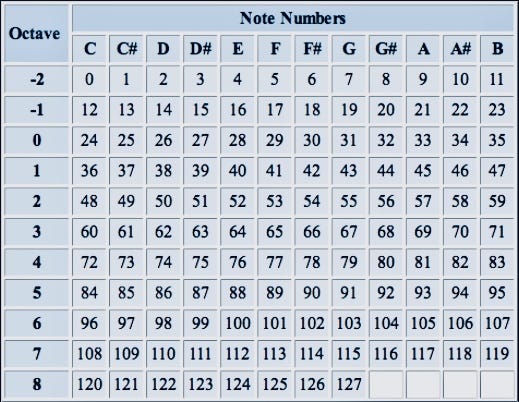
In my keyboard, I have 5 octaves so I chose 36 for the first C note of my keyboard but you can choose any note you like for this considering the number of keys your keyboard has.
// convert the detected row column into the midi signal
uint8_t get_note(int r, int c) {
return 36 + (r * COLS) + c;
}
The above function converts a row-column coordinate to an actual MIDI note. so let’s say it gets r=0 and c = 1 then it returns 37 which is the MIDI note for C# of the first octave.
In MIDI, there are two essential messages we need. One is for turning off a note and the other for turning off them.
//function for sending the note-on signal
void send_note_on(uint8_t note) {
uint8_t cable = 0;
uint8_t msg[3] = {0x90, note, 127};
tud_midi_stream_write(cable, msg, 3);
}
This functions sends a Note On message. 0x90 is the MIDI status byte for Note On on channel 1. and note is the note number we calculated earlier. 127 is the velocity (how hard the key is pressed) As our keyboard does not support velocity sensing yet, we use a fixed value of 127 as the velocity.
The tud_midi_stream_write() function is provided by TinyUSB and it sends raw MIDI bytes over USB to the computer.
//function for sending the note-off signal
void send_note_off(uint8_t note) {
uint8_t cable = 0;
uint8_t msg[3] = {0x80, note, 0};
tud_midi_stream_write(cable, msg, 3);
}
Here 0x80 is the MIDI status byte for Note Off and we use 0 as the velcoicty value as a standard practice.
I have added comments to the rest of the code so that you can understand what each function does and I won’t explain them here as it makes the article too long. If you have any questions feel free to ask them in the comment section.
Now all you have to do is compile the project using the Pico extension for VS code and flash the .ufs file onto your Pico Board.
Let’s Play Some Music
If you want to play your piano without using a DAW (Digital Audio Worsktation) like FL stuido, you can just plug the usb cable into your movile phone( Android / iOS ) and use a minimal piano app or music making app.
On my Android, I tried the following app named “Perfect Piano” which allow you to play any song you want just by plugging into it. No setup headaches. I am sure similar apps are available for iOS as well.
As I have become a fan of FL studio thanks to the great course offered by FreeCodeCamp’s youtube channel I decided to give you a demo of how my DIY MIDI keyboard works with FL studio. This is my first time working with this kind of music and please don’t mind the quality of the music : )
If you enjoyed the video, please let me know in the comment section as it is a huge motivation to write more stuff like this.
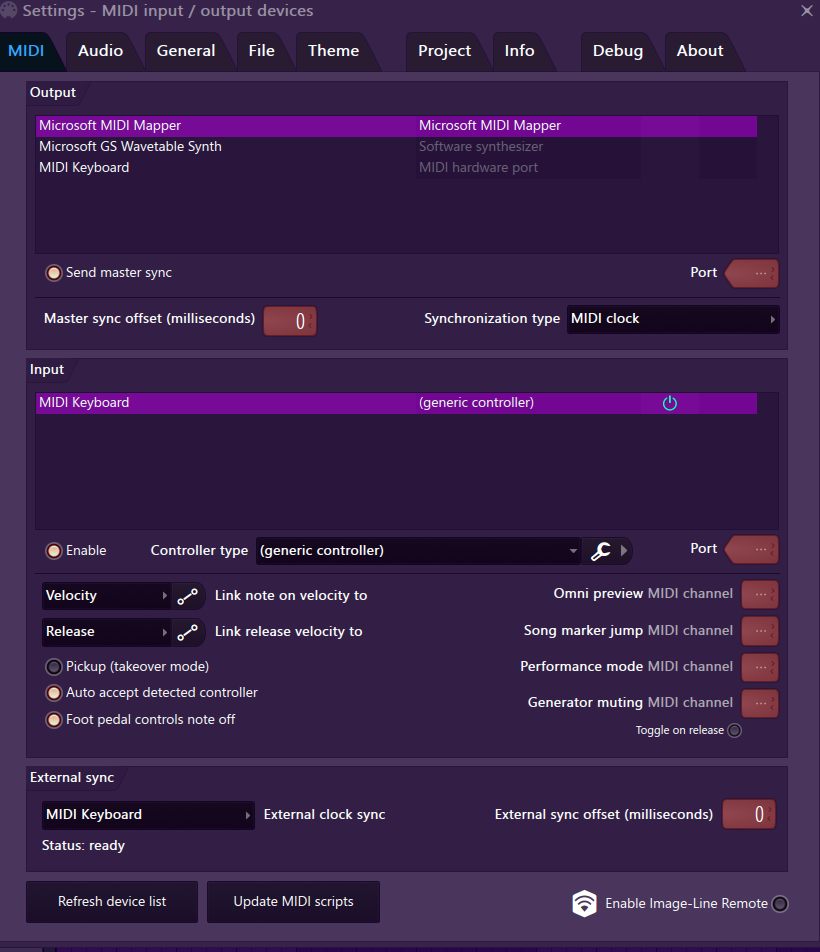
As you can see our MIDI keyboard is clearly visible in the FL studio’s MIDI device list.
Special Thanks!
This is one of the longest projects I ever did and completed and there is a few people I would like to thank.
My dad — For helping me for soldering work and finding and buying everything I needed
The ones who always loved to see what I make ❤
My sister — For trusting me in dissecting her piano : )
Tanner Tech — For the proof of concept and inspiration: https://www.youtube.com/watch?v=UBMLq3aa4Ok
Rotaract Club of University of Moratuwa — This article is written for Weekly Tech Bytes program of their blog and without them I would never write this long article.
This article was also published on My Medium Page
Until we meet again with another interesting article, Goodbye!!
Thanks for reading.
Happy building.